Comp Exporter
Export and import After Effects compositions with all their dependencies between projects.

Installation
Download the latest version of Comp Exporter from your dashboard at toolsformotion.com/dashboard. You will download a .zip file containing the tool.
Unzip the file, then place the Comp Exporter .jsxbin file in your After Effects ScriptUI Panels folder.
- Mac: /Applications/Adobe After Effects [version]/Scripts/ScriptUI Panels/
- Windows: C:\Program Files\Adobe\Adobe After Effects [version]\Support Files\Scripts\ScriptUI Panels\
Restart After Effects, then open the panel from Window > Comp Exporter. You can dock it anywhere in your workspace like any other panel.
Panel Buttons
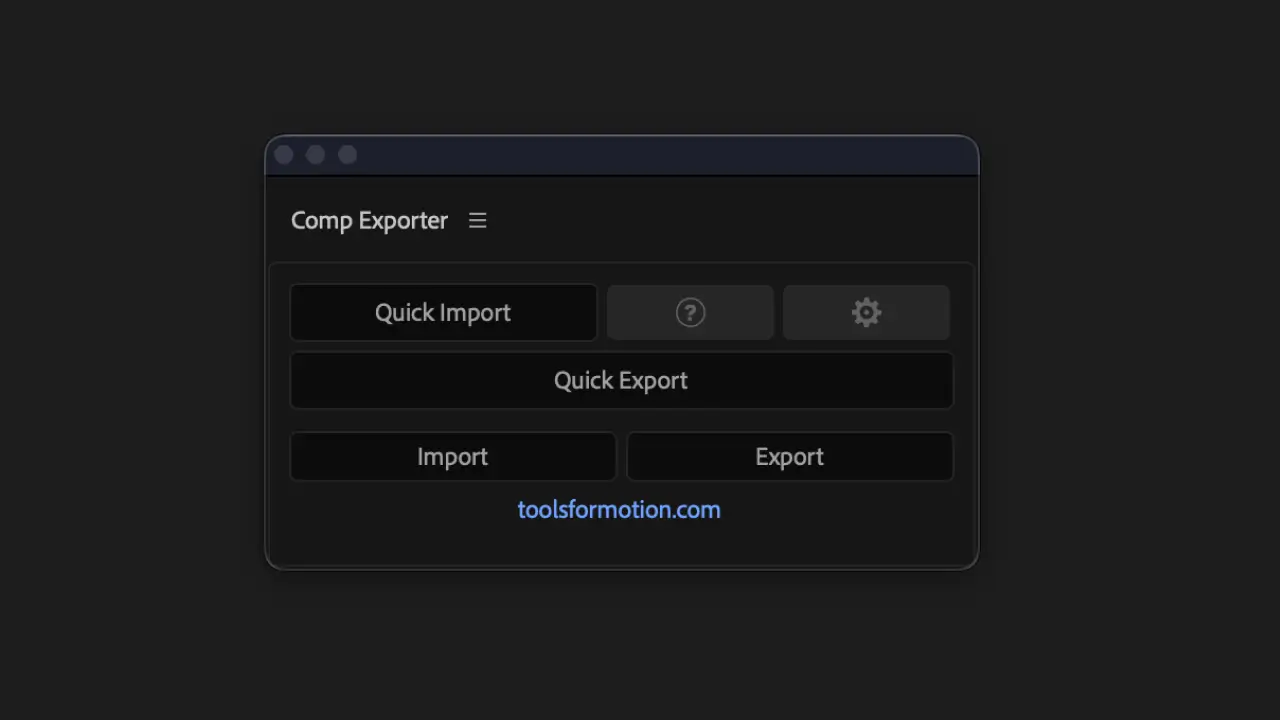
Quick Export
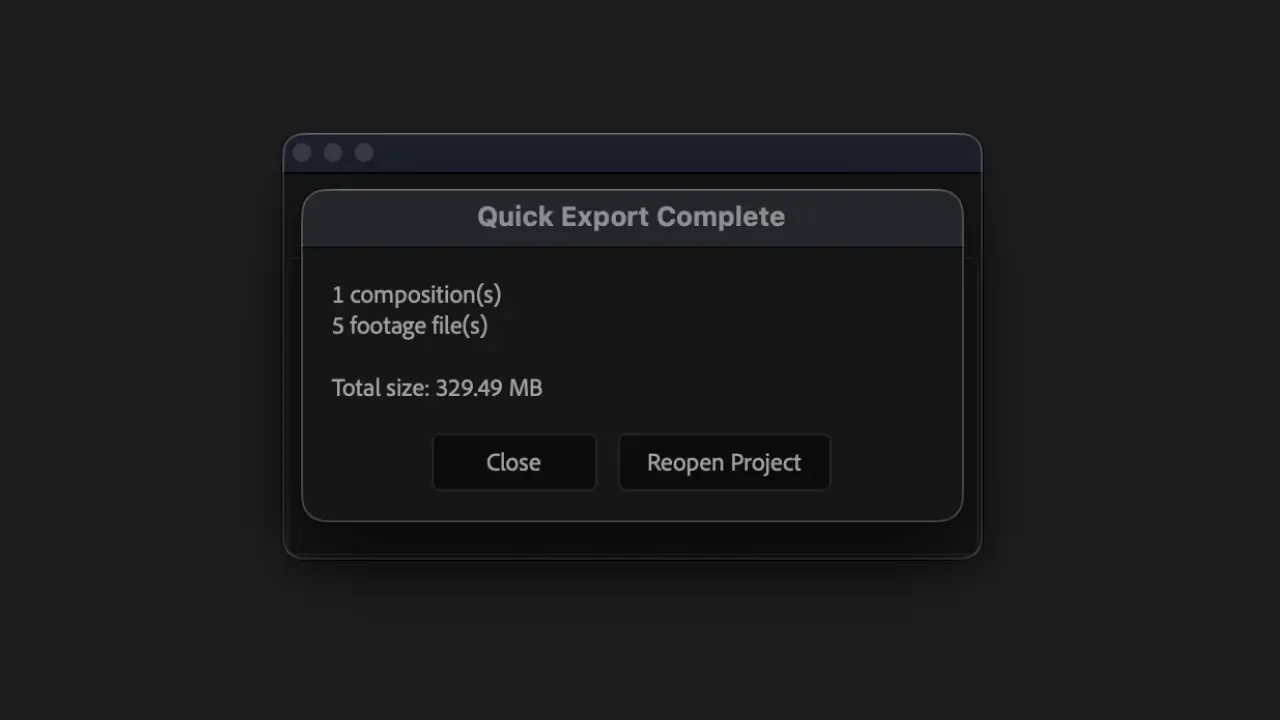
Exports selected comps and all their dependencies to a temp folder in one click. Any previous Quick Export is cleared first. Shows the total file size on completion.
Quick Import
Imports the last Quick Export into your current project. This button is grayed out if no Quick Export exists.
Import
Browse to any export folder and import it. Shift+click to re-import from the last manual export location without browsing.
Export
Browse for a save location, name your library, and export selected comps with full control.
Settings
The gear icon opens settings where you can configure a custom temp directory for Quick Export. If you change the directory, it offers to delete the old Quick Export data.
Info
The info icon shows details of the last Quick Export including the source project, comps, footage list, and total size. It also has an Open Temp Folder button.
What Gets Exported
When you export, the following items are collected and saved:
- Selected comps and all nested precomps
- All footage files (images, video, audio, sequences)
- Solids
- Comps referenced by expressions (comp("Name"))
Everything else is stripped from the exported AEP to keep the file clean and portable.
Export Folder Structure
Each export creates a self-contained folder with the following structure:
- [Library Name].aep
- export_manifest.txt
- (Footage)/Images/
- (Footage)/Video/
- (Footage)/Audio/
- (Footage)/Sequences/[sequence_name]_seq/
- (Footage)/Other/
The export_manifest.txt is used internally by the tool. It contains details about the export and allows Comp Exporter to read through and relink all footage files during import.
Import Behavior
When importing, Comp Exporter handles everything automatically:
- Copies footage to [Your Project Folder]/(Footage)/[Library Name]/
- Imports the AEP directly into your current project (no project switching)
- Relinks all footage to the local copies
- Image sequences are re-imported fresh to ensure correct frame detection
During import you'll be asked whether to organize the imported items in your After Effects project panel by type (Images, Video, Audio, etc.) or keep the original folder structure. This only affects how bins are arranged inside After Effects, not the files on disk.
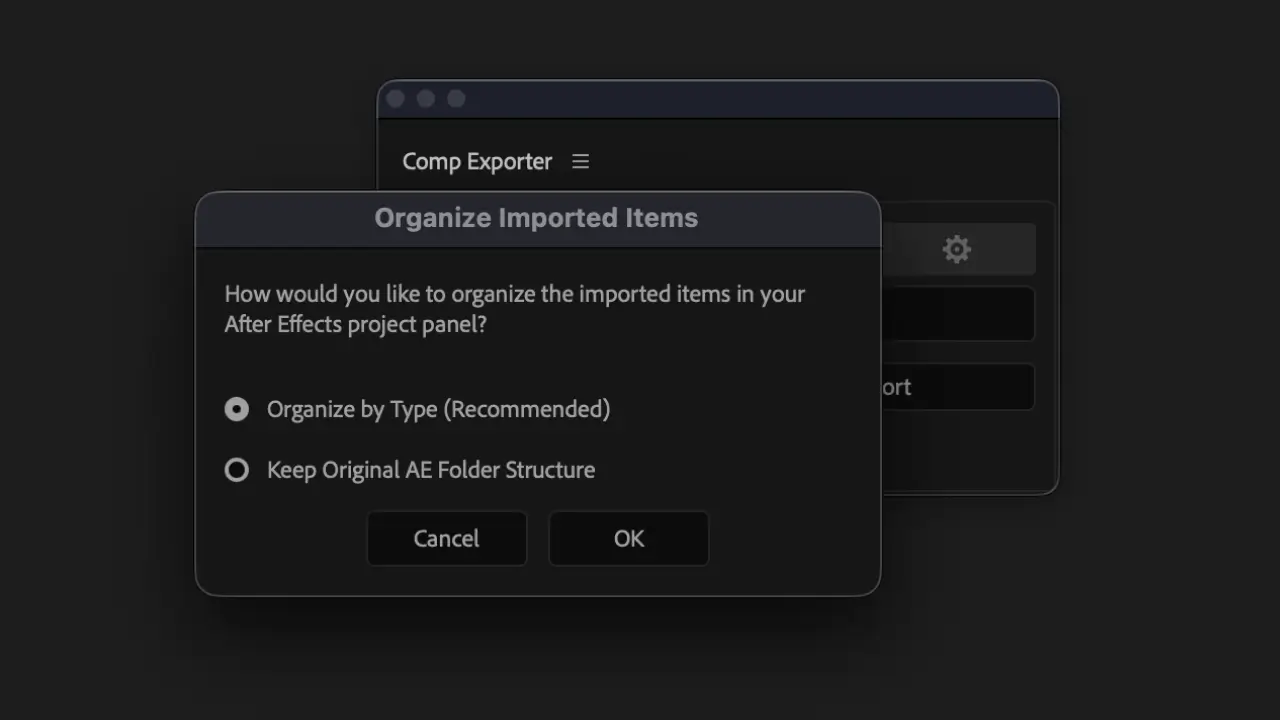
Picking Organize by Type sorts the imported items into bins by kind.
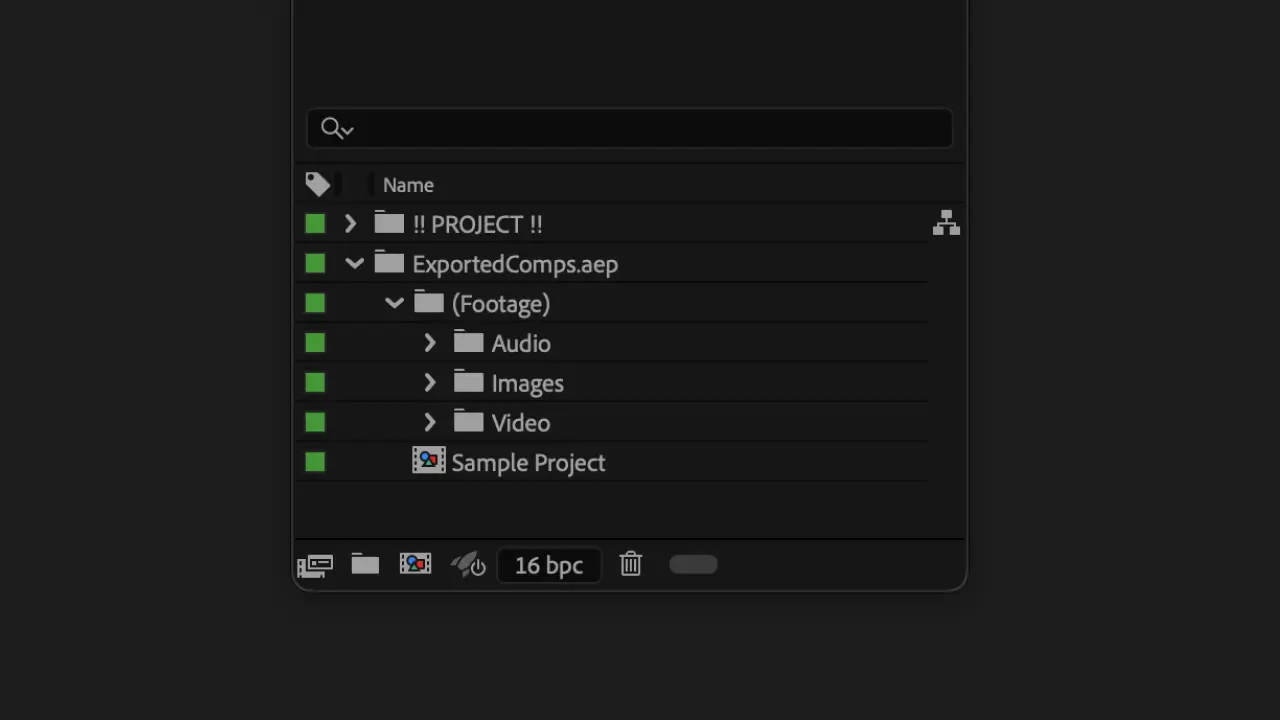
Edge Cases
Unsaved Changes Prompt
Quick Export checks for unsaved changes and gives you three options: Save, Don't Save, or Cancel. Choosing Don't Save exports your current state but reverts the original project to its last saved version.
Same-Project Detection
If you try to import back into the same project you exported from, Comp Exporter warns you with a full path comparison.
Large File Warning
Exports over 500MB trigger a prompt before proceeding, so you can confirm before committing to a large transfer. Large exports will take time depending on your hard drive read/write speed.
Filename Conflict Handling
Duplicate filenames are handled automatically. Each conflict gets its own numbered subfolder so nothing is overwritten.
Image Sequence Detection
Footage is scanned for image sequence patterns. Video and audio formats are excluded from detection to avoid false matches.
Troubleshooting
Script not appearing
Make sure you've restarted After Effects after placing the .jsxbin file. If it still doesn't show, check that the file is in the correct ScriptUI Panels folder for your version of After Effects.
Need help?
Contact support@toolsformotion.com